Automated Notebook Validation
Over time, software environments evolve and dependencies change. This can cause notebooks that once worked to fail unexpectedly. The automated notebook validation service runs all notebooks in a clean Repo2Docker environment inside Jupyter4NFDI, ensuring that repositories remain compatible and reproducible.
GitHub Action
The easiest way to run the automated notebook validation is GitHub Actions.
Create GitHub Action
1 - Get Jupyter4NFDI API Token - Browse to https://hub.nfdi-jupyter.de/hub/token , log in and request a new API token. Give it a useful note like "Repo GitHub Action". Copy that token.
2 - Add Token to GitHub Environment - Browse to your GitHub Repository. Click on Settings, Environments and New environment. Give it useful name like "jupyter4nfdi". Click on Add environment secret, enter JUPYTERHUB_API_TOKEN as Name and paste your token into value.
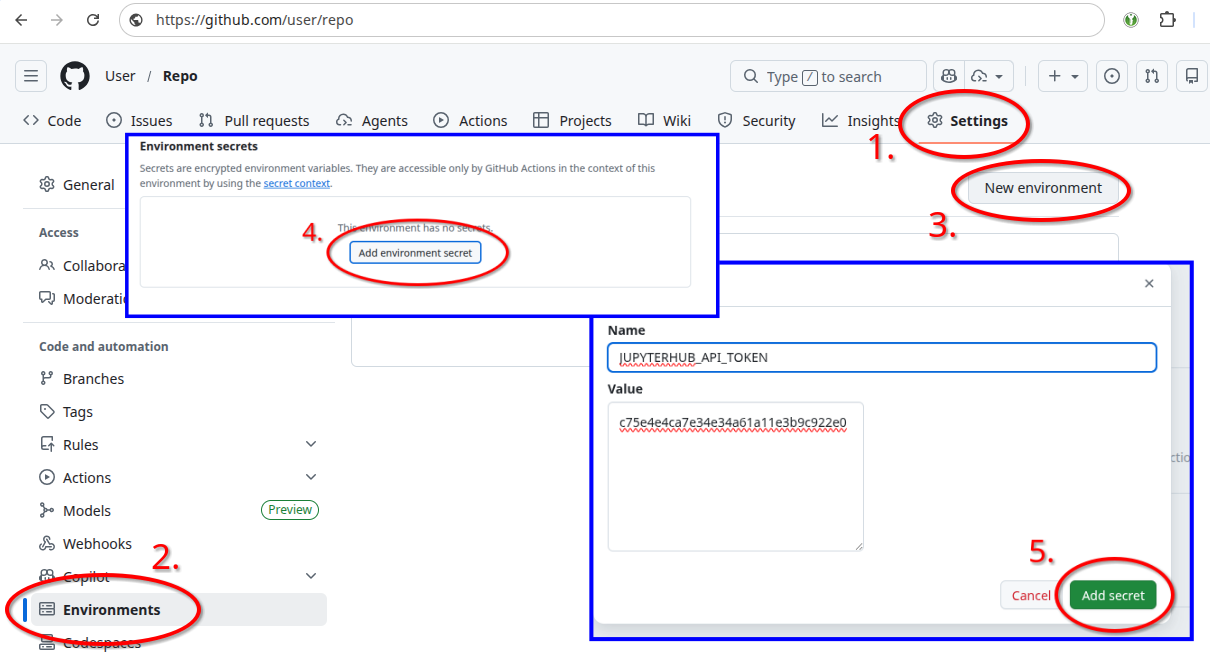
3 - Add GitHub Action - Browse to your GitHub Repository. Click on Actions and set up a workflow yourself. Afterwards copy the following text into it:
name: Runs on Jupyter4NFDI

on:
  workflow_dispatch:
  schedule:
    - cron: "0 7 * * 1"

jobs:
  notebooks:
    runs-on: ubuntu-latest
    environment: jupyter4nfdi
    steps:
      - name: Run notebooks via papermill on Jupyter4NFDI
        uses: NFDI-Jupyter/ghactions/.github/actions/notebooks@main
        with:
          repo: ${{ github.repository }}
          ref: ${{ github.ref_name }}
          # notebook_dirs: '["notebooks", "examples"]' # Only check specific folders in your repo
          token: ${{ secrets.JUPYTERHUB_API_TOKEN }}
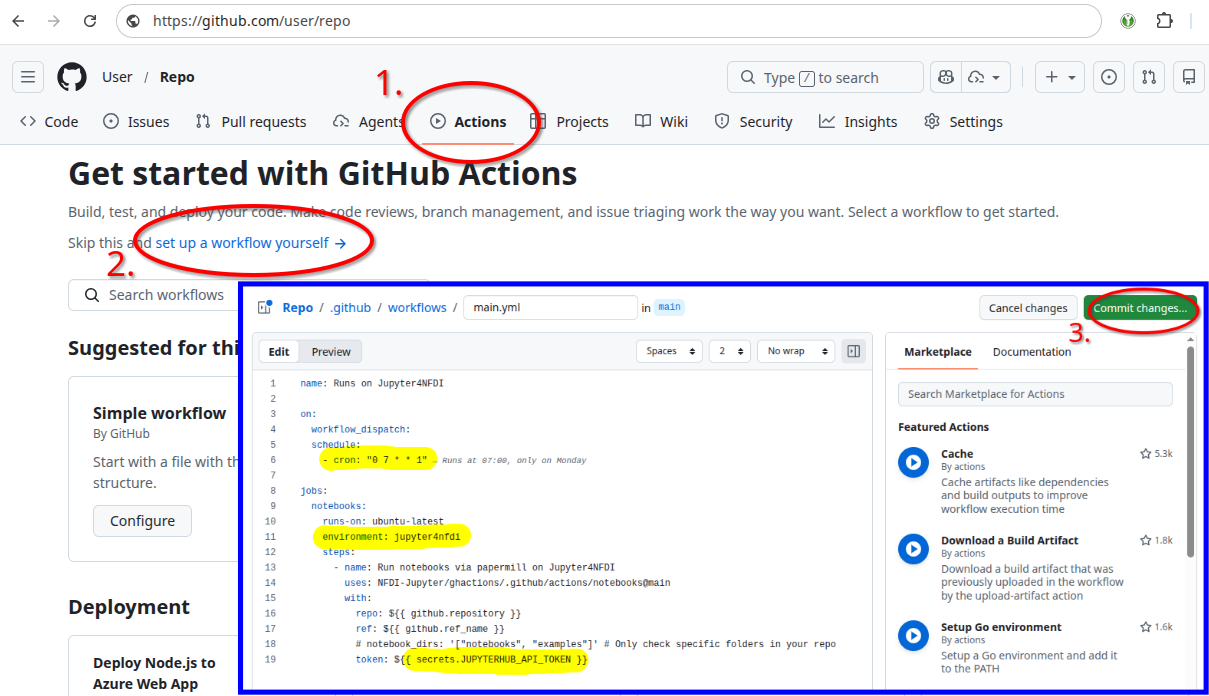
4 - Customize - Update schedule in your workflow if required. Make sure the environment name is the one from step 2. If only specific folders should be check set notebook_dirs accordingly.
5 - Commit - Click on commit changes.
Use GitHub Action
1 - Run Workflow - Browse to your GitHub Repository. Click on Actions, Runs on Jupyter4NFDI, Run workflow and Run workflow again. After a few seconds you will see a running workflow.
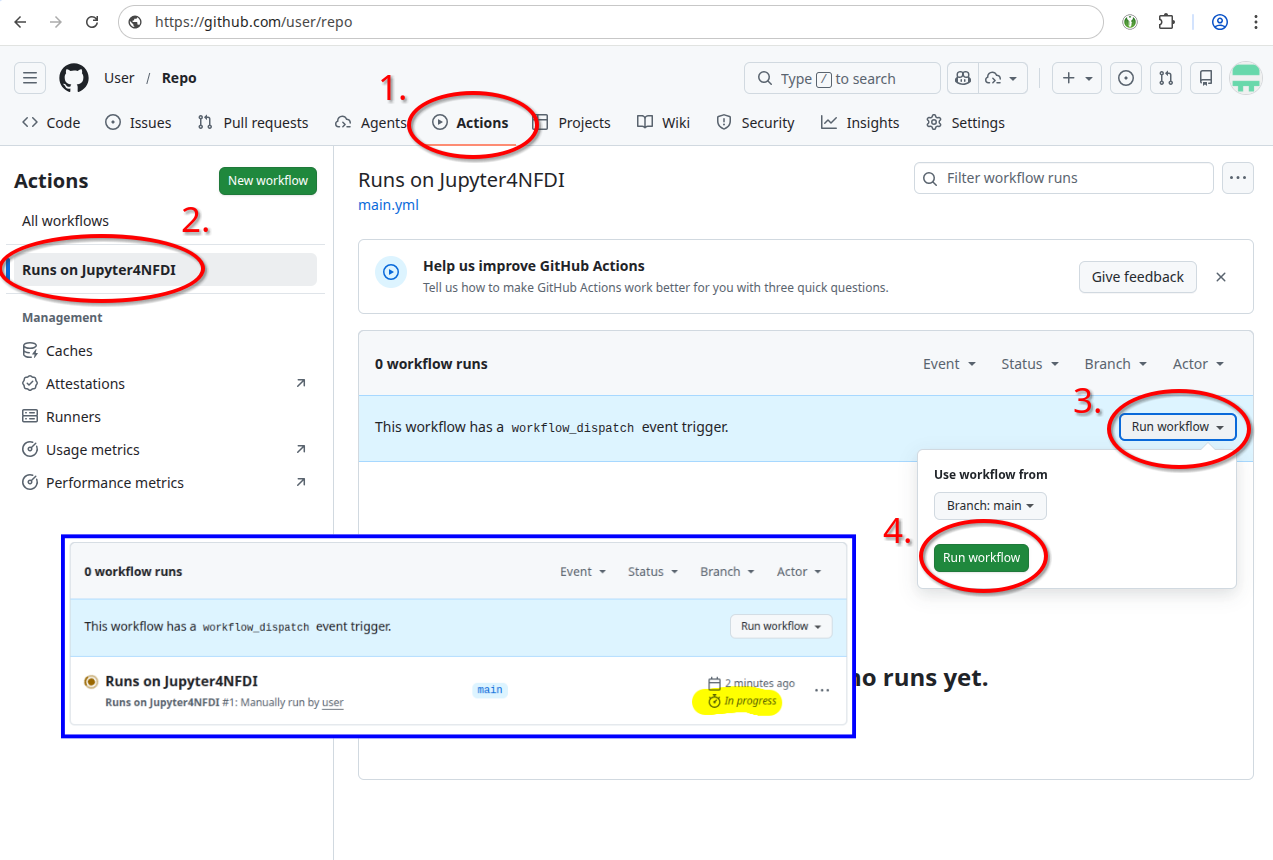
2 - Check Logs - Once the workflow is finished you can click on Runs on Jupyter4NFDI, notebooks and Run notebooks via papaermill on Jupyter4NFDI. Scroll down to find the logs from papermill executing your notebooks. Example Output:
Job URL: https://hub.nfdi-jupyter.de/hub/api/job/username/gf987pbdv0loadr48lep63etyr5r2csv
Job status: running
Job status: stopped

========== PAPERMILL LOGS ==========
{
  "exitCode": 0,
  "results": [
    {
      "notebook": "/home/jovyan/notebooks/notebook.ipynb",
      "exitCode": 0,
      "stdout": "Input Notebook:  /home/jovyan/notebooks/notebook.ipynb\nOutput Notebook: /tmp/tmpsv0i6e8b/notebook.ipynb\n\nExecuting:   0%|          | 0/2 [00:00<?, ?cell/s]Executing notebook with kernel: javascript\n\nExecuting:  50%|\u2588\u2588\u2588\u2588\u2588     | 1/2 [00:01<00:01,  1.29s/cell]\nExecuting: 100%|\u2588\u2588\u2588\u2588\u2588\u2588\u2588\u2588\u2588\u2588| 2/2 [00:04<00:00,  2.23s/cell]\n"
    }
  ]
}
===================================
Papermill job completed successfully
Add Jupyter4NFDI Badge
Repositories that are compatible with Jupyter4NFDI can display a badge in their README.md.
When users click the badge, the repository is opened in a ready-to-use Jupyter4NFDI environment via Repo2Docker.
Update _repoowner_, _repotype_ and main.yml to fit your repository.
[](https://hub.nfdi-jupyter.de/v2/gh/_repoowner_/_repotype_/HEAD)

Support
Feel free to contact us if you're having trouble setting up your GitHub Action.